
Travel Registration
Mississippi State University is committed to ensuring the safety of faculty, staff, and students. As such, the university has implemented a campus-wide risk management system which provides support to students when traveling for institutional-related matters both domestically and internationally.
Travel Registry allows individuals and groups traveling for institutional-related purposes to register their trip(s) through the system. The system serves as a streamlined hub that hosts trip itineraries, contact information and destination-based risk assessment. This site will only focus on domestic travel. For more information on international travel requirements, visit International Travel - Travel Services - Mississippi State University
The Travel Registry system also includes AlertTraveler®, an app that provides the traveler with (1) city intelligence to help you make informed decisions while traveling, (2) safety and security alerts to let you know of any events that could potentially impact your travel or safety, and (3) an instant check-in option allowing you to report your status back to MSU administrators in case of an incident.
To ensure that the University has the information necessary to respond in the event of a critical incident, student travel that exceeds twenty-five (25) miles from the University site where the student is currently enrolled must be registered through the Travel Registry System.
First-Time User Profile Setup
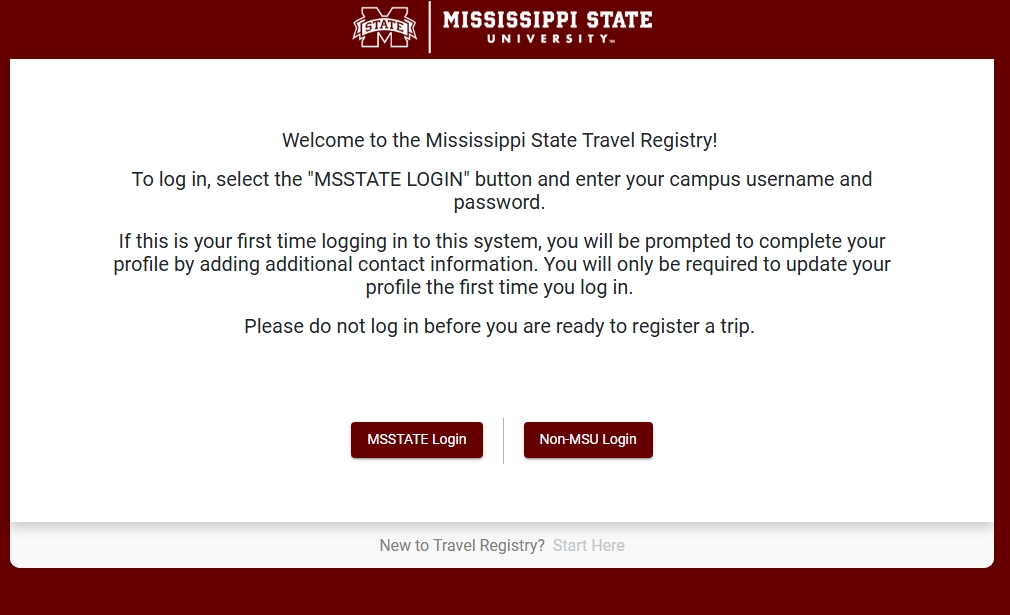
Access the registry at: Travel Registry Select MSSTATE Log in and sign in with your MyState Credentials

Set up your profile. All users are required to input contact information, including a home-country mobile number and emergency contact.

Set up your profile. All users are required to input contact information, including a home-country mobile number and emergency contact.
Registering a Trip
All travelers need to register their travel plans in advance: at least 2 weeks (10-14 business days) before your departure for any domestic trip.
You can manually add a new trip once you have set-up your profile:
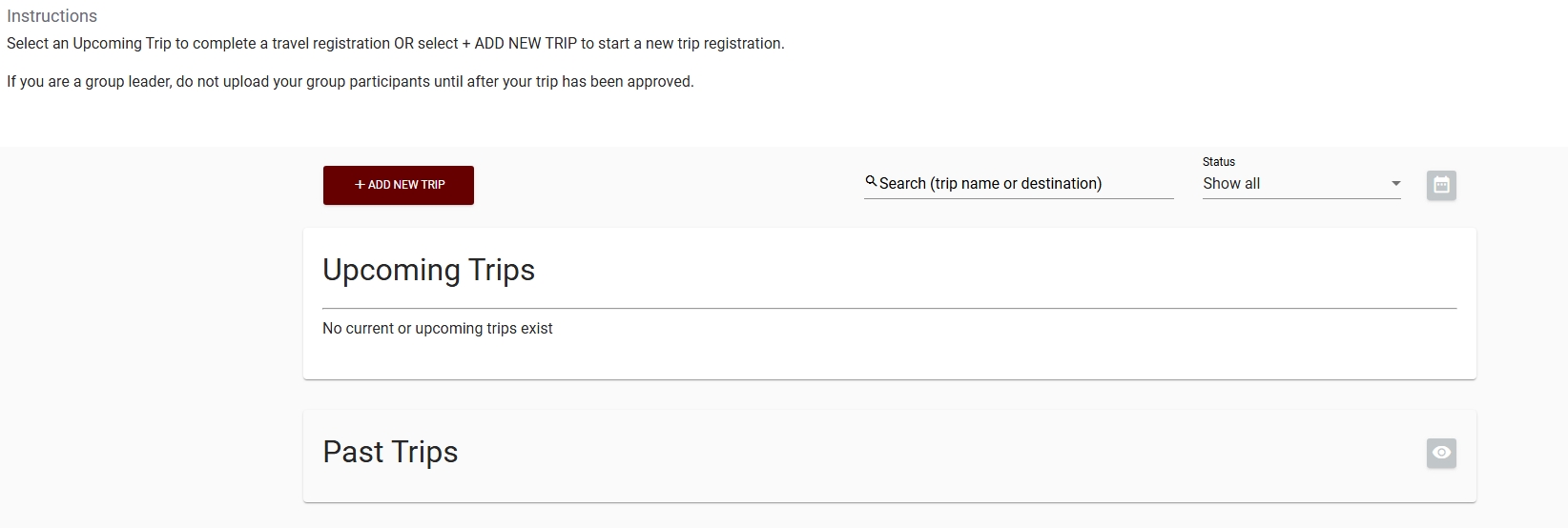
You can manually add a new trip by logging into your Travel Registry account, selecting the Trips page and selecting Add New Trip.
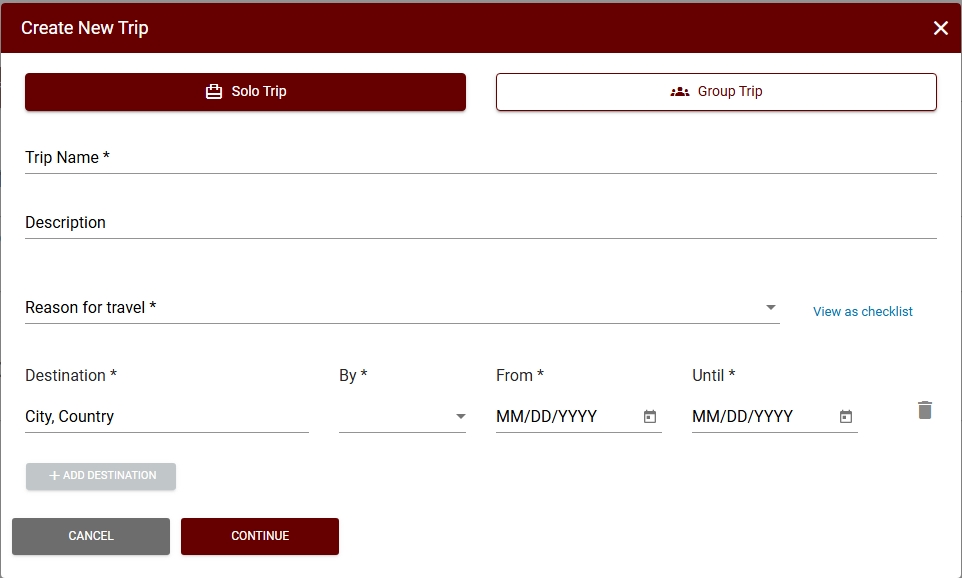
You will then create a new trip (solo trip) by inputting a trip title, description, reason for travel, destination, and other travel details. After submitting the trip details, you will proceed to the next screen, which may require details.
Group Travel
Faculty, staff, and students can input group trips in the travel registry system. This function will allow group leaders or designated delegates to register a trip on behalf of other users.
To Register a group trip, you must first have access to the travel registry system as a “Group Leader.” You can request this access via email at studenttravel@msstate.edu Without this access, you will not see the “Group Trip” toggle button as seen in the image below:
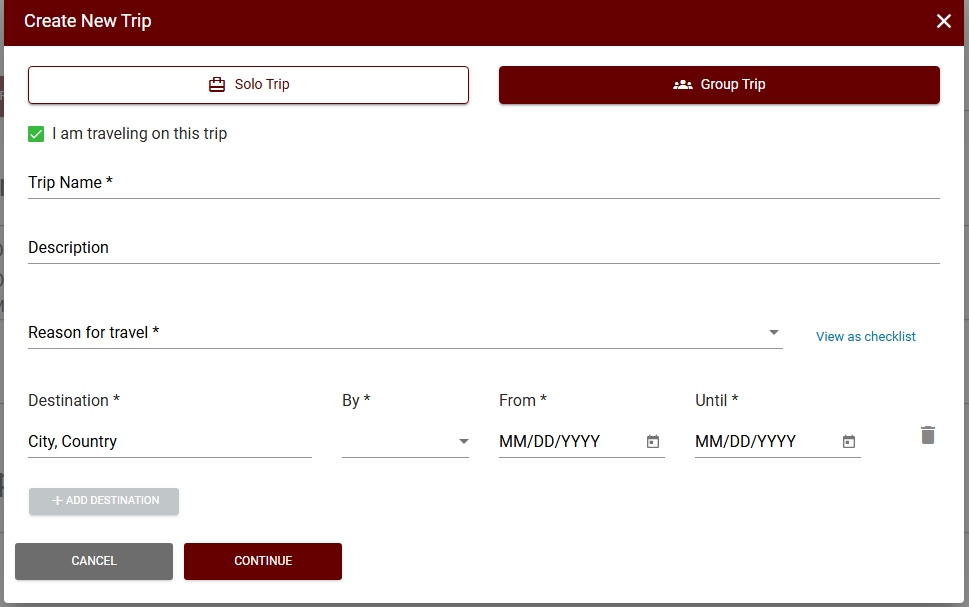
Log in to the Travel Registry site and add a new trip. A group Trip toggle will appear on the trip creation screen (see previous image).
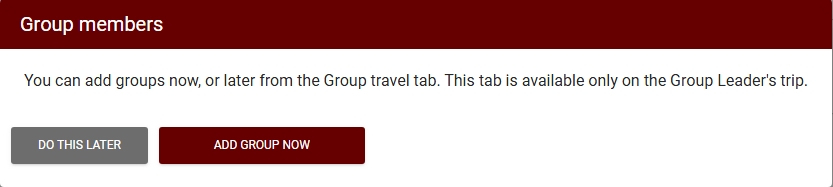
Once the trip is saved, the group leader will be able to add travelers to their group which will create a copy of the trip on each user’s profile.
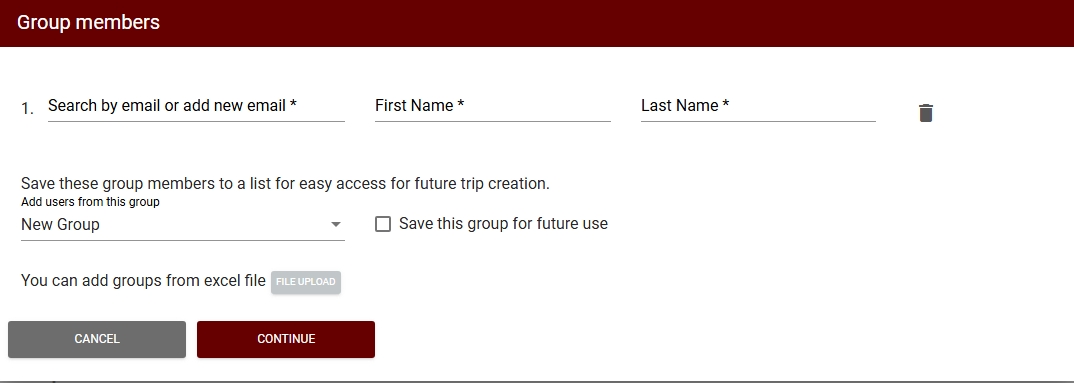
Group members can be added one of two ways. First, you can manually enter the MSU net id of each traveler.
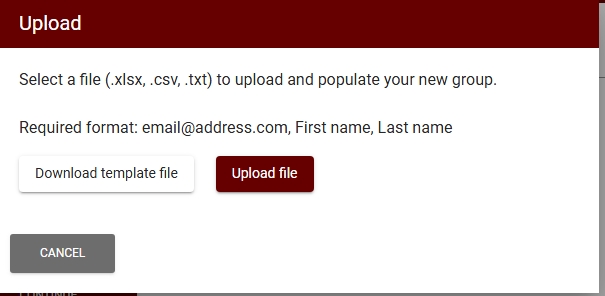
The other way is by uploading a roster of the group members. Be sure to complete this step before moving on, as you cannot return to this roster template once you proceed. If this a group of travelers the leader travels with frequently, they can save this group using the “Save this group for future use” option at the bottom of the page. This allows them to import the list for a future trip.
Likewise, if the group of student they wish to add has already been saved as a group, they can use the dropdown menu at the bottom to select the group.
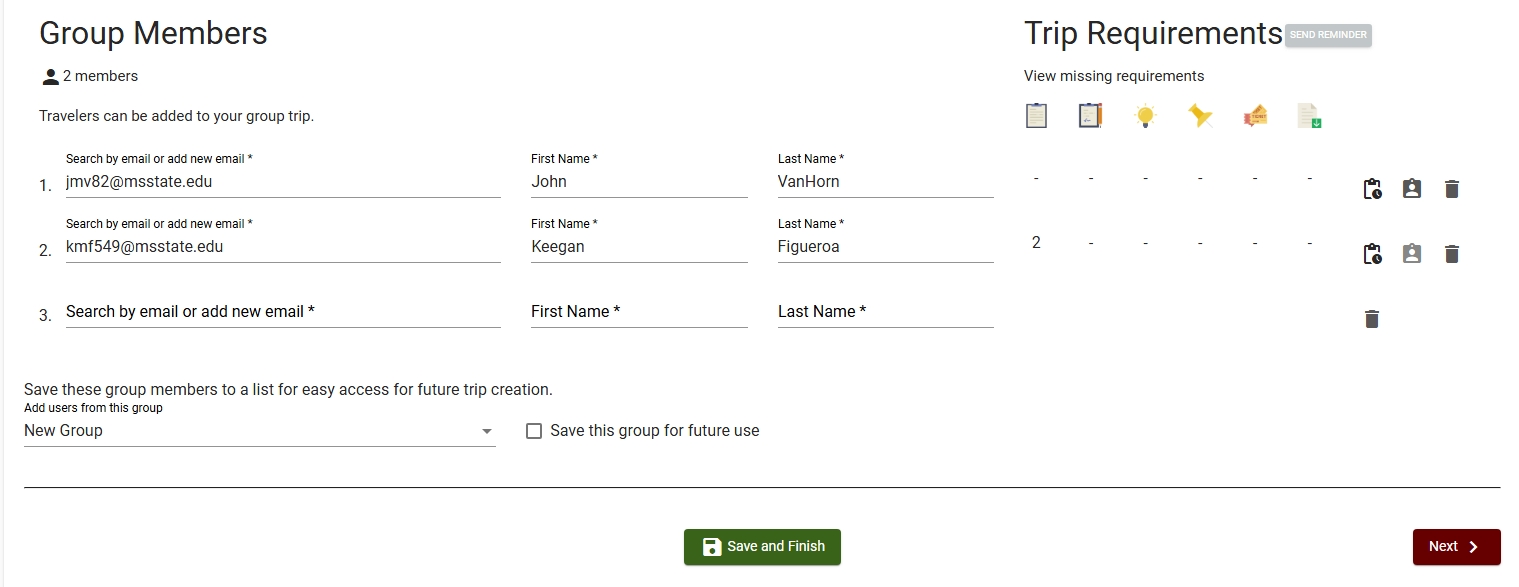
Once a group member has been added, the group leader can see how many trip requirements of each type a traveler still needs to complete before the trip can be submitted. This is indicated by the icons to the right of the traveler’s name.
The group leader can also send reminders to the travelers in their group using the “Send Reminder” button, promoting group members to finish any forms and content (if applicable). Finally, for any non-required trip requirements, the group leader can complete them on behalf of the whole group.